
For a long time, the barrier to entry for cloud experimentation was the cost. That changed when I finally snagged a spot in the Oracle Cloud Free Tier. After months of waiting for capacity, I successfully provisioned a powerhouse ARM instance in the Phoenix region—boasting 4 cores, 24GB of RAM, and 200GB of storage. It was the perfect playground for my self-hosted services.
Initially, I took the “quick and dirty” route: opening custom firewall ports and accessing services via http://<IP-address>:<Port>. It worked, but it was far from ideal. Not only was it a headache to remember which port belonged to which service, but exposing multiple ports to the open internet is a massive security risk. I needed a way to consolidate traffic, secure it with HTTPS, and use human-readable subdomains. Enter Caddy 2.0.
Reverse Proxies: The Traffic Controller
Think of a Reverse Proxy as a concierge for your server. Instead of a visitor trying to find a specific room (port) in a massive hotel (your VM) on their own, they simply talk to the concierge at the front desk (the Reverse Proxy on Port 80/443).
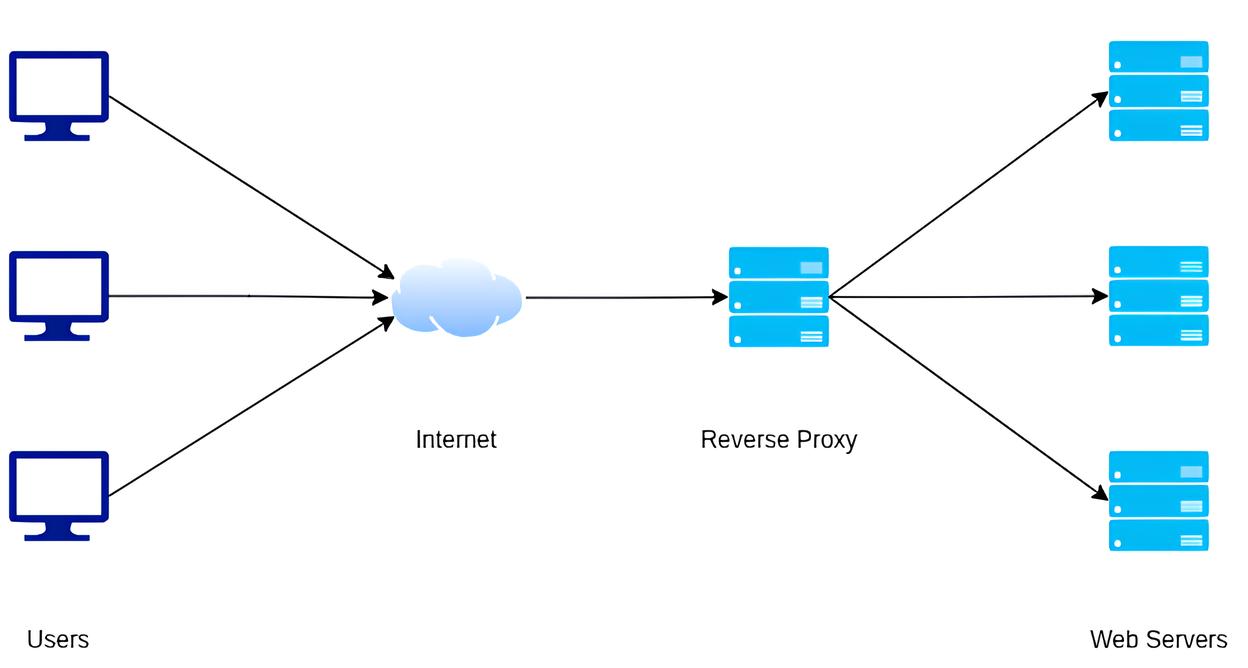
When you type app.yourdomain.com into your browser, the request hits the Reverse Proxy. The proxy looks at the domain name, identifies which internal service it corresponds to (e.g., a service running on localhost:8080), and fetches the data for the user.
Key Benefits:
- Security: Only ports 80 and 443 need to be open to the world.
- SSL Termination: The proxy handles HTTPS encryption, so your individual apps don’t have to.
- Simplicity: No more memorizing port numbers.
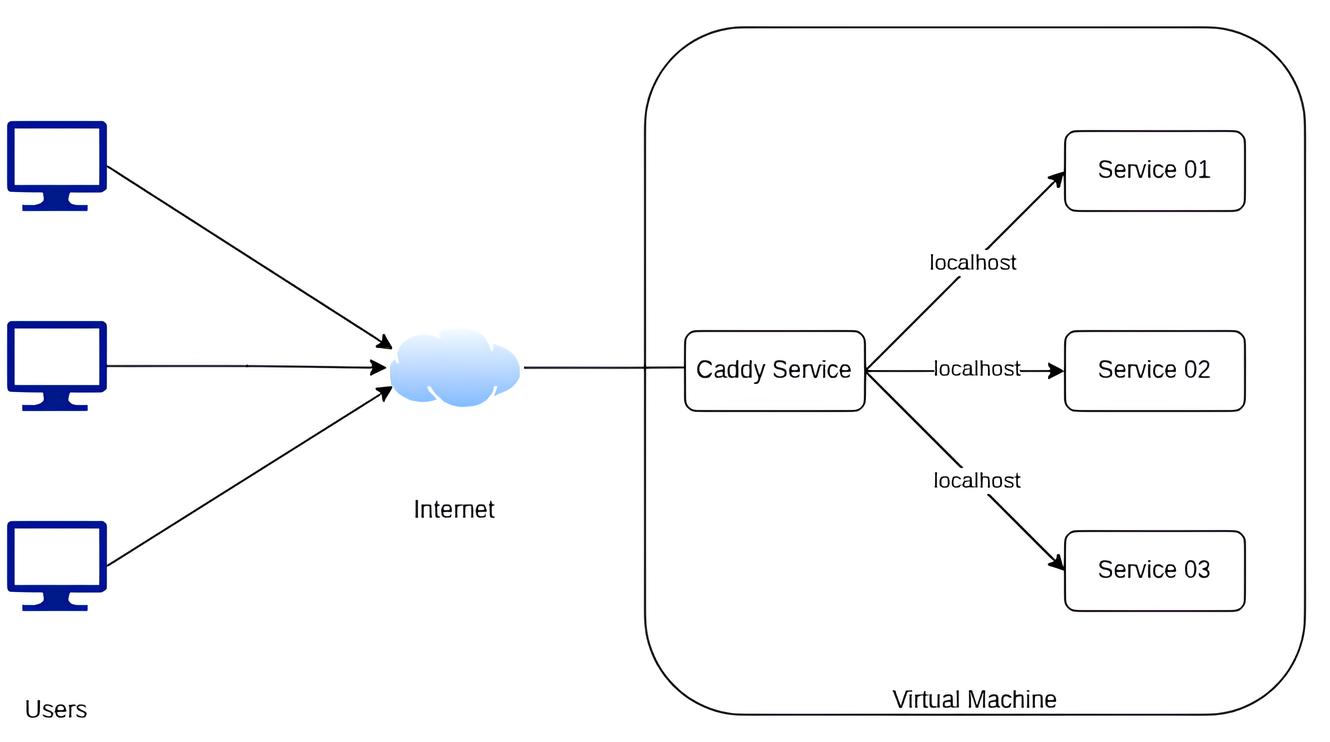
Note that in real world usecases like in the diagram, people uses a separate server as the reverse proxy too. This makes ip addresses of the web servers completely hidden from the internet making them secure. But in this case I wanted to remove custom ports opened to the internet and only open port 80 and 443 making my server less vulnerable.
Caddy 2.0: The Modern Web Server
While Nginx and Apache are the “old guard,” Caddy 2.0 is the modern favorite for enthusiasts and professionals alike. Why? Because it was designed with the modern web in mind.
Why Caddy?
- Automatic HTTPS: This is Caddy’s killer feature. It automatically obtains and renews TLS certificates from Let’s Encrypt or ZeroSSL by default. No manual Certbot scripts required.
- Single Binary: It’s written in Go, meaning it’s a single executable with zero dependencies.
- Human-Readable Config: Caddy uses the “Caddyfile,” which is significantly easier to read and write than the nested syntax of Nginx.
- HTTP/3 Support: It supports the latest web protocols out of the box.
Setting up Caddy 2.0
Here is a simple diagram on how my own setup works with caddy and handles external traffic from the internet.
1. Installation
On a Linux VM (Ubuntu/Debian), you can install Caddy via the official repository:
sudo apt install -y debian-keyring debian-archive-keyring apt-transport-https curl
curl -1sLf 'https://dl.cloudsmith.io/public/caddy/stable/gpg.key' | sudo gpg --dearmor -o /usr/share/keyrings/caddy-stable-archive-keyring.gpg
curl -1sLf 'https://dl.cloudsmith.io/public/caddy/stable/debian.deb.txt' | sudo tee /etc/apt/sources.list.d/caddy-stable.list
sudo chmod o+r /usr/share/keyrings/caddy-stable-archive-keyring.gpg
sudo chmod o+r /etc/apt/sources.list.d/caddy-stable.list
sudo apt update
sudo apt install caddy
You can find other installation options in their documentations
2. Configure Your Firewall
Ensure your Cloud Security Lists (in Oracle Cloud) and your internal firewall (ufw) allow traffic on ports 80 (HTTP) and 443 (HTTPS).
sudo ufw allow 80/tcp
sudo ufw allow 443/tcp
Also you need to make sure the firewall rules applied from the cloud provider is also allowing traffic in ports 80 and 443.
3. Start the Service
Start the caddy service if not already started and enable it so that it starts again on system start.
sudo systemctl enable caddy
sudo systemctl start caddy
4. The Configuration using Caddyfile
The Caddyfile is where you map your domains to your internal ports. Open it with: sudo nano /etc/caddy/Caddyfile
Follwoing is a example Caddyfile with options I use in my server,
# Global options (optional)
{
    # Turning off API on opening in port 2019
    # because I just edit caddyfile if anything need to change
    # and much more secure because it closes one point for any attacks
	admin off
	log {
		output stderr
		format filter {
			# Preserves first 8 bits from IPv4 and 32 bits from IPv6 in logs
            # improved privacy
			request>remote_ip ip_mask 8 32
			request>client_ip ip_mask 8 32
			# Remove identifiable information in logs
			request>remote_port delete
			request>headers delete
			request>uri query {
				delete url
				delete h
				delete q
			}
		}
	}
    # tells Caddy how to identify the real user when Caddy is sitting behind a load balancer, Cloudflare, or a reverse proxy
	servers {
		client_ip_headers X-Forwarded-For X-Real-IP
		trusted_proxies static private_ranges
		trusted_proxies_strict
	}
}

# Mapping a domain/subdomain to a service on port 9000
# direct link
yourdomain.com {

    reverse_proxy localhost:9000

    # Security headers
	header {
        # forces the browser to only use HTTPS for the next year
		Strict-Transport-Security "max-age=31536000; includeSubDomains; preload"
        # Prevents your site from being rendered inside an <iframe> on another domain.
		X-Frame-Options "SAMEORIGIN"
        # Stops the browser from "guessing" the file type (MIME-sniffing) if the header is missing.
        # prevents MIME-type sniffing attacks (e.g., treating a .jpg as executable .js).
		X-Content-Type-Options "nosniff"
        # Controls how much info is sent in the Referer header when clicking a link.
		Referrer-Policy "strict-origin-when-cross-origin"
        # The minus sign removes the "Server: Caddy" header.
        # external parties does not know the implementation details
		-Server
	}

	# Enable compression for efficient communication
	encode zstd gzip
}

# Mapping another subdomain to a service on port 8080
app.yourdomain.com {

    reverse_proxy localhost:8080

    # Security headers
	header {
		Strict-Transport-Security "max-age=31536000; includeSubDomains; preload"
		X-Frame-Options "SAMEORIGIN"
		X-Content-Type-Options "nosniff"
		Referrer-Policy "strict-origin-when-cross-origin"
		-Server
	}

	# Enable compression
	encode zstd gzip
}

# you can also add a basic auth to the subdomain
admin.yourdomain.com {

    basic_auth {
        # Username: admin
        admin <hashed_password>
    }

    reverse_proxy localhost:8080

    # Security headers
	header {
		Strict-Transport-Security "max-age=31536000; includeSubDomains; preload"
		X-Frame-Options "SAMEORIGIN"
		X-Content-Type-Options "nosniff"
		Referrer-Policy "strict-origin-when-cross-origin"
		-Server
	}

	# Enable compression
	encode zstd gzip
}
You can use following command to hash a password
caddy hash-password --plaintext "your-secret-password"
After editing the Caddyfile you need to restart the caddy service to take changes into effect.
sudo systemctl restart caddy
Caddy will immediately reach out to Let’s Encrypt, verify your domain ownership (ensure your DNS A-records point to your VM IP!), and provision your SSL certificates. Your services are now live, secure, and professionally mapped!
I am currently using services like openwebui, litellm, n8n with this caddy server and it works perfectly with these configurations and can access them easily. Also this website is hosted internally using the caddy reverse proxy.